${articleTitle}
How to Connect Messenger to Your CJ Account?
To make your communication with CJdropshipping faster and easier, you can connect your CJ account with Messenger.
Once connected, you’ll be able to receive confirmation messages and handle certain operations directly through Messenger. This guide will walk you through how to connect and disconnect Messenger with your CJ account step by step.
1. Connect Your CJ Account
1.1 Log in to Your CJ Account
Go to the following link and log in:
https://www.cjdropshipping.com/my.html#/profile/info >>
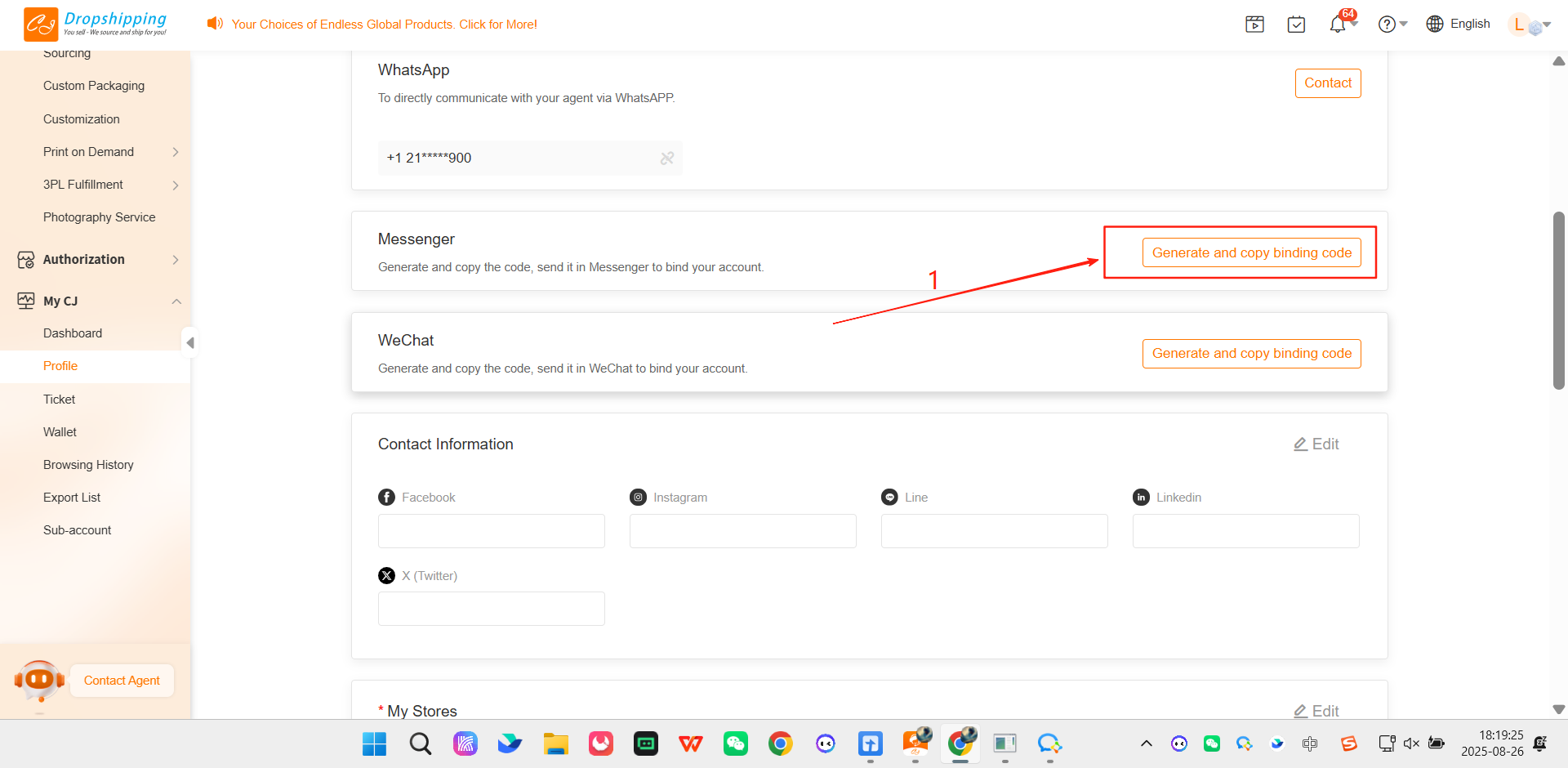
1.2 Generate and Copy the Connection Code
Click Generate and Copy Binding Code (this is your connection code).
1.3 Open Messenger
In Messenger, open the chat window with CJdropshipping.
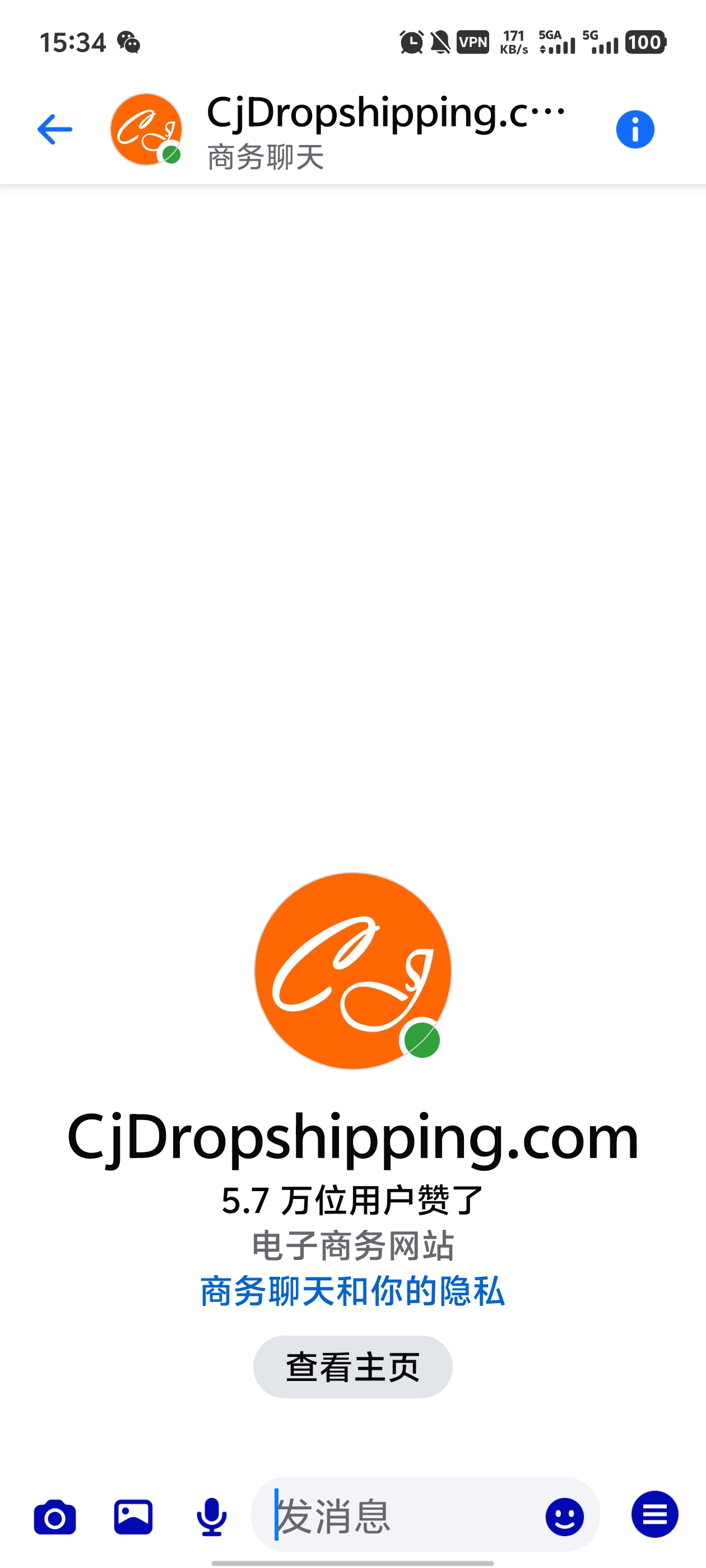
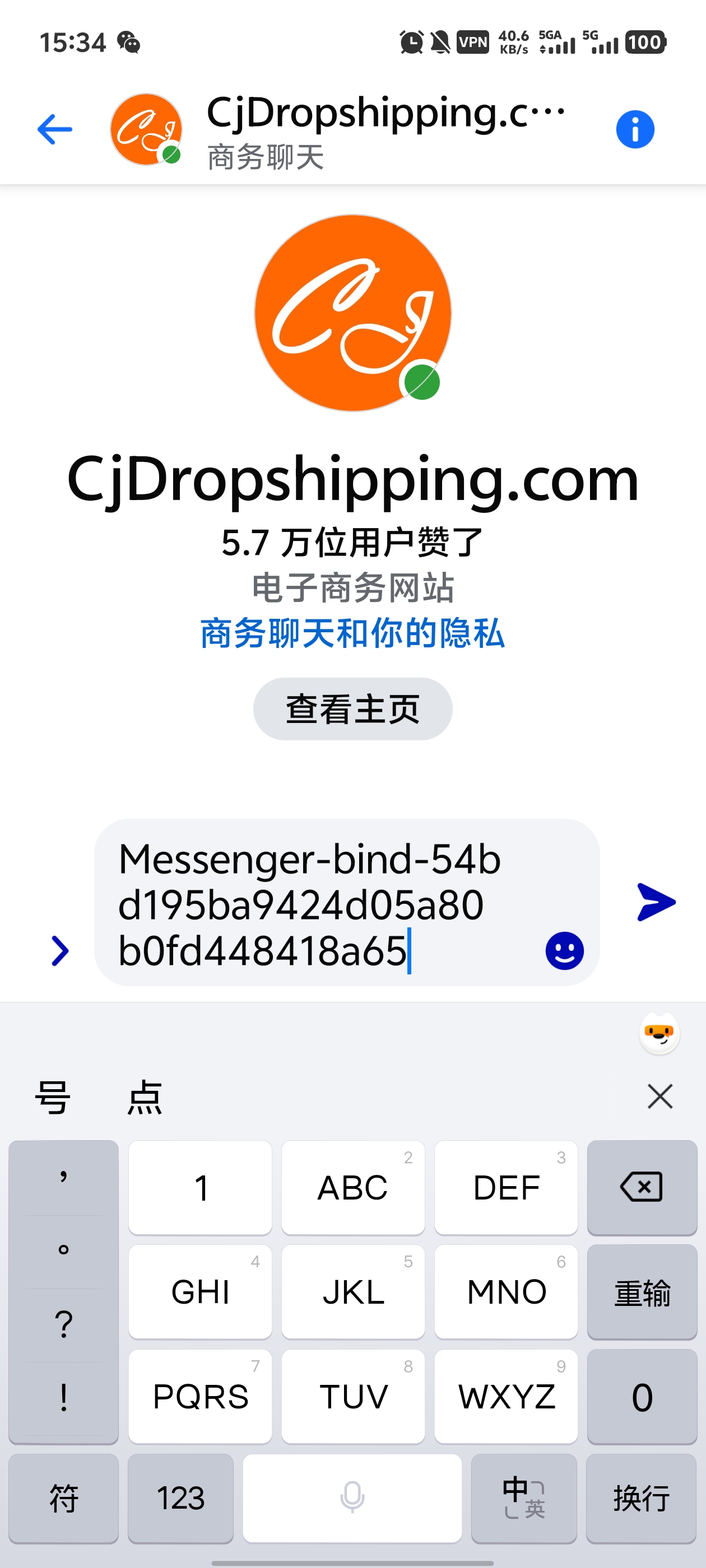
1.4 Paste and Send the Connection Code
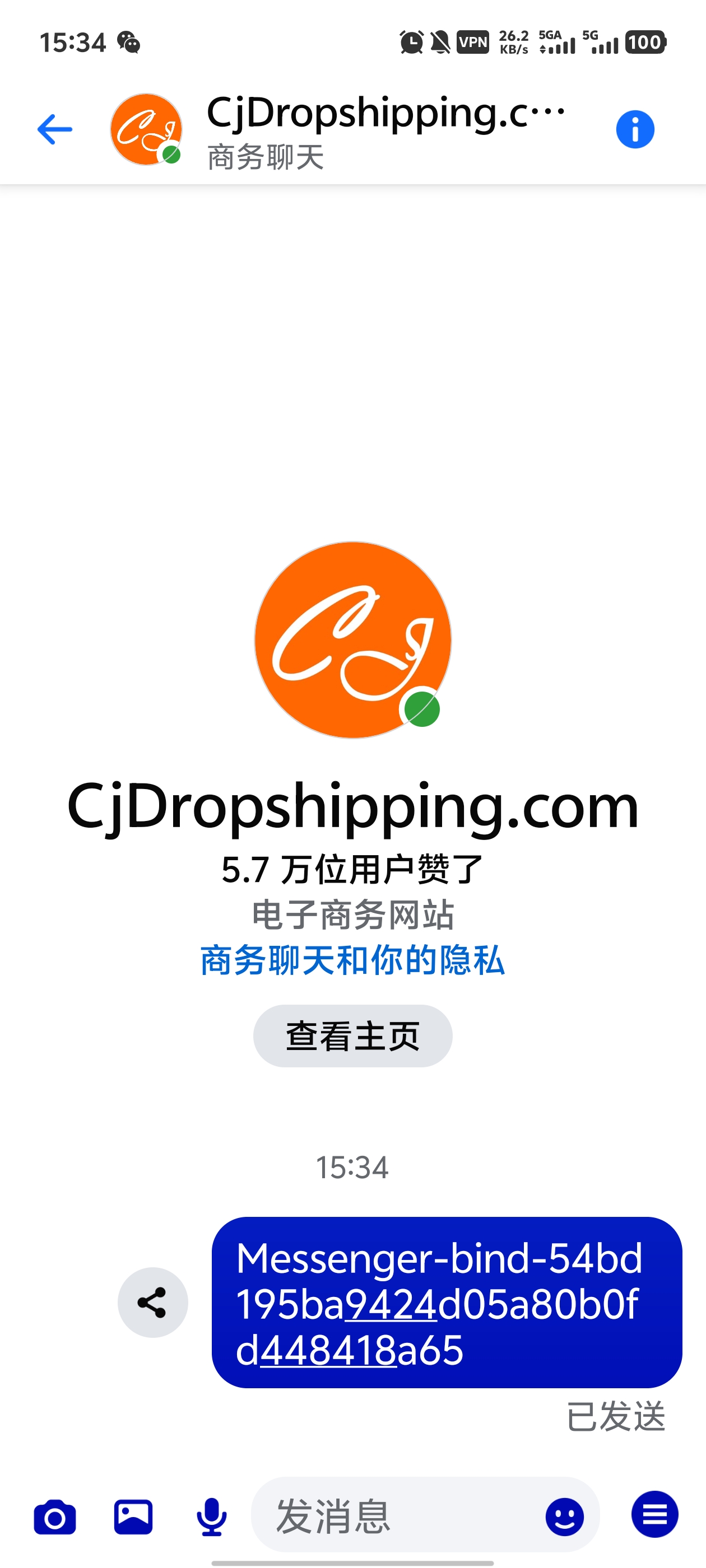
Paste the copied connection code into the chat window and send it.
1.5 Wait for the Process
After sending, please wait about 30–150 seconds for the system to process.
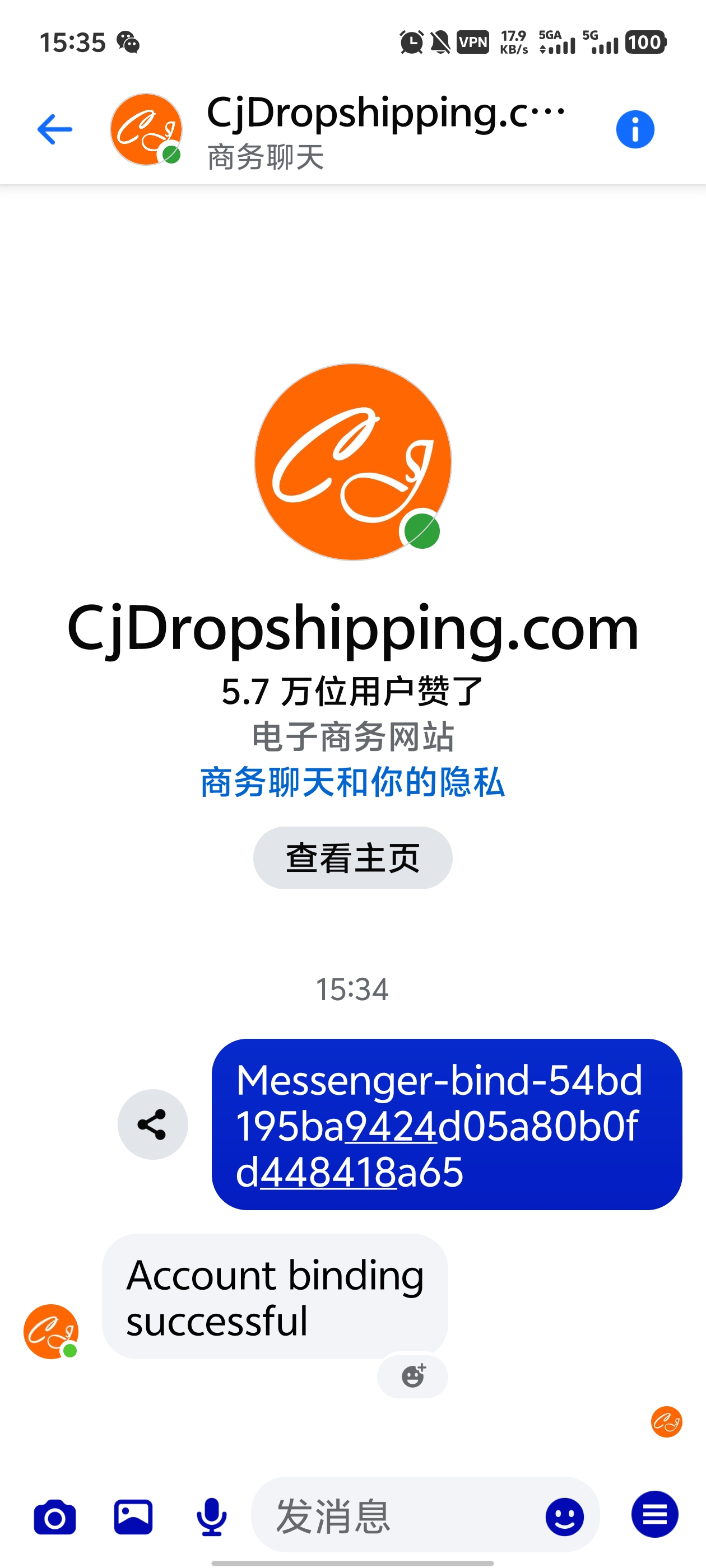
1.6 Connection Successful
Once the connection is successful, you will receive a confirmation message like the example below.
2. Disconnect Messenger from Your CJ Account
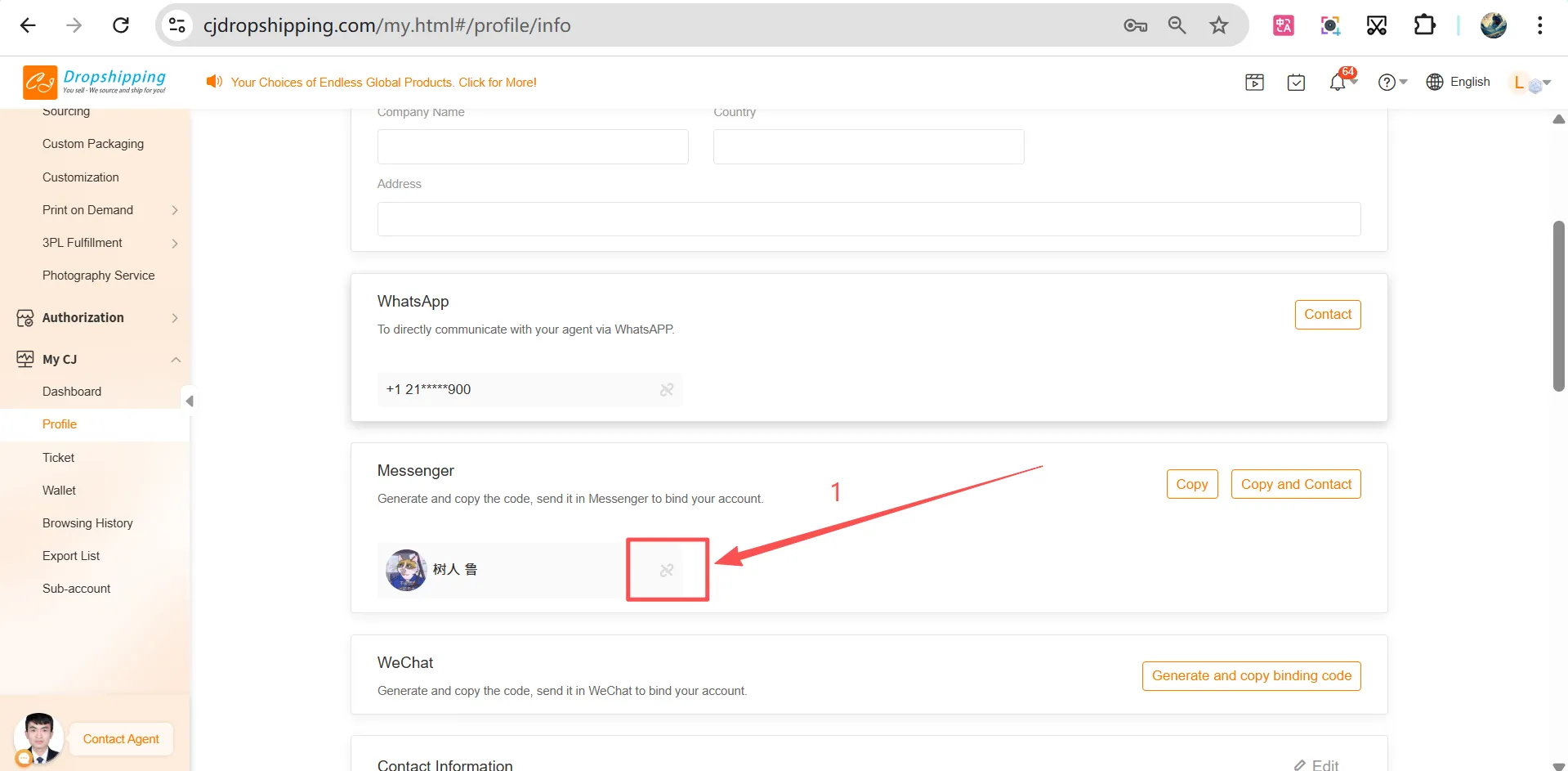
If you want to disconnect a CJ account number from Messenger:
-
Go to https://www.cjdropshipping.com/my.html#/profile/info and log in with the account already connected to Messenger.
-
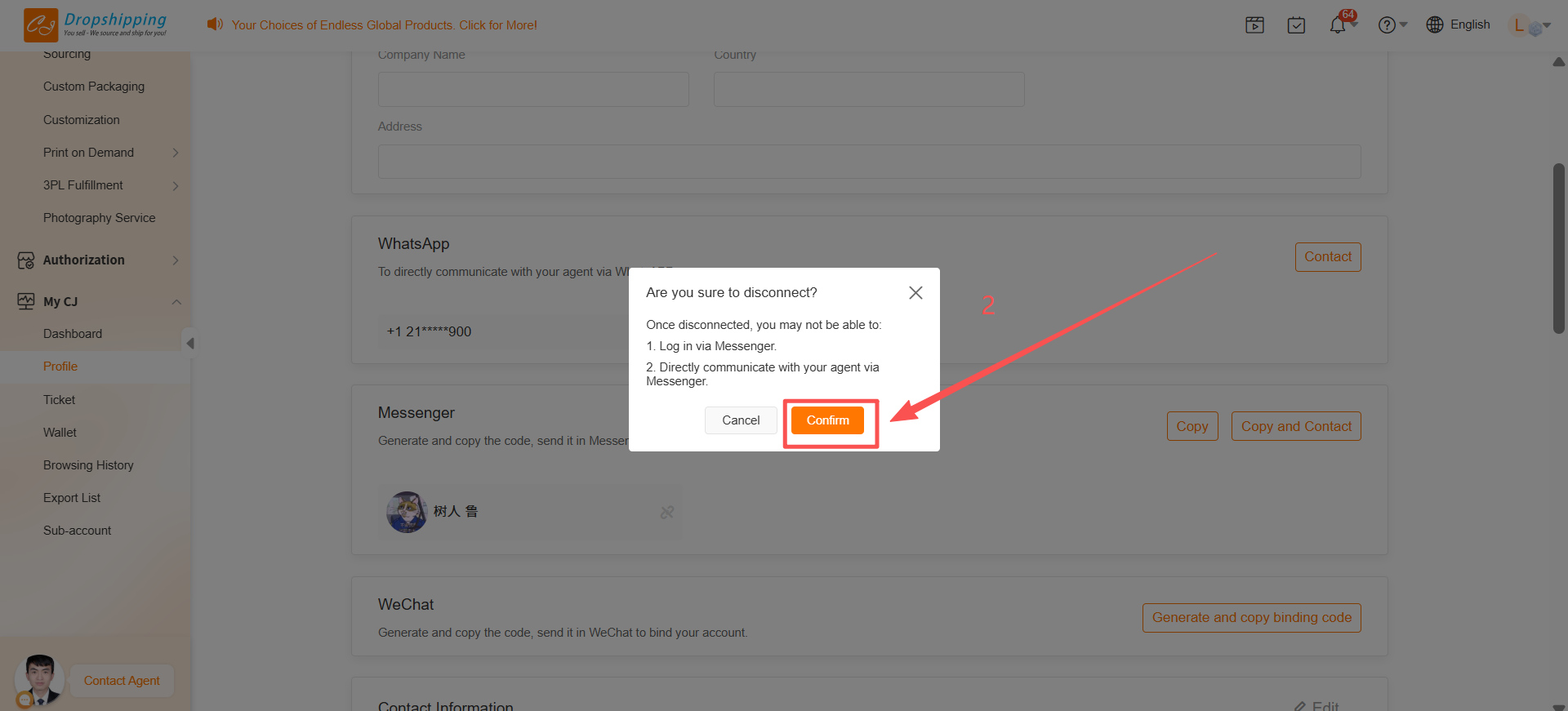
Click Confirm to disconnect, as shown in the example image below.