${item.title}
${item.title} ${item.afterBtn.text}
${item.text}
${item.title}
${item.afterBtn.text}

${articleTitle}

How to Connect Mercadolibre Stores to CJdropshipping?

3172 4 mins article
Date Created: Oct. 09, 2024 08:47:57 Last Edited: Jun. 26, 2026 09:20:03

Connecting your Mercadolibre store to CJdropshipping lets you list products and automate order fulfillment directly through CJ.

Warning: Only Cross-Border Store accounts in self-delivery mode are supported. Full (Mercado Envíos Full) warehouse-mode stores are automatically filtered out after authorization.
Step 1Key PointApp Store Access

In CJ Dropshipping (https://www.cjdropshipping.com/), go to Apps → Install App. The App Store dialog opens. Under Cross-Border E-commerce Platform, find Mercado.
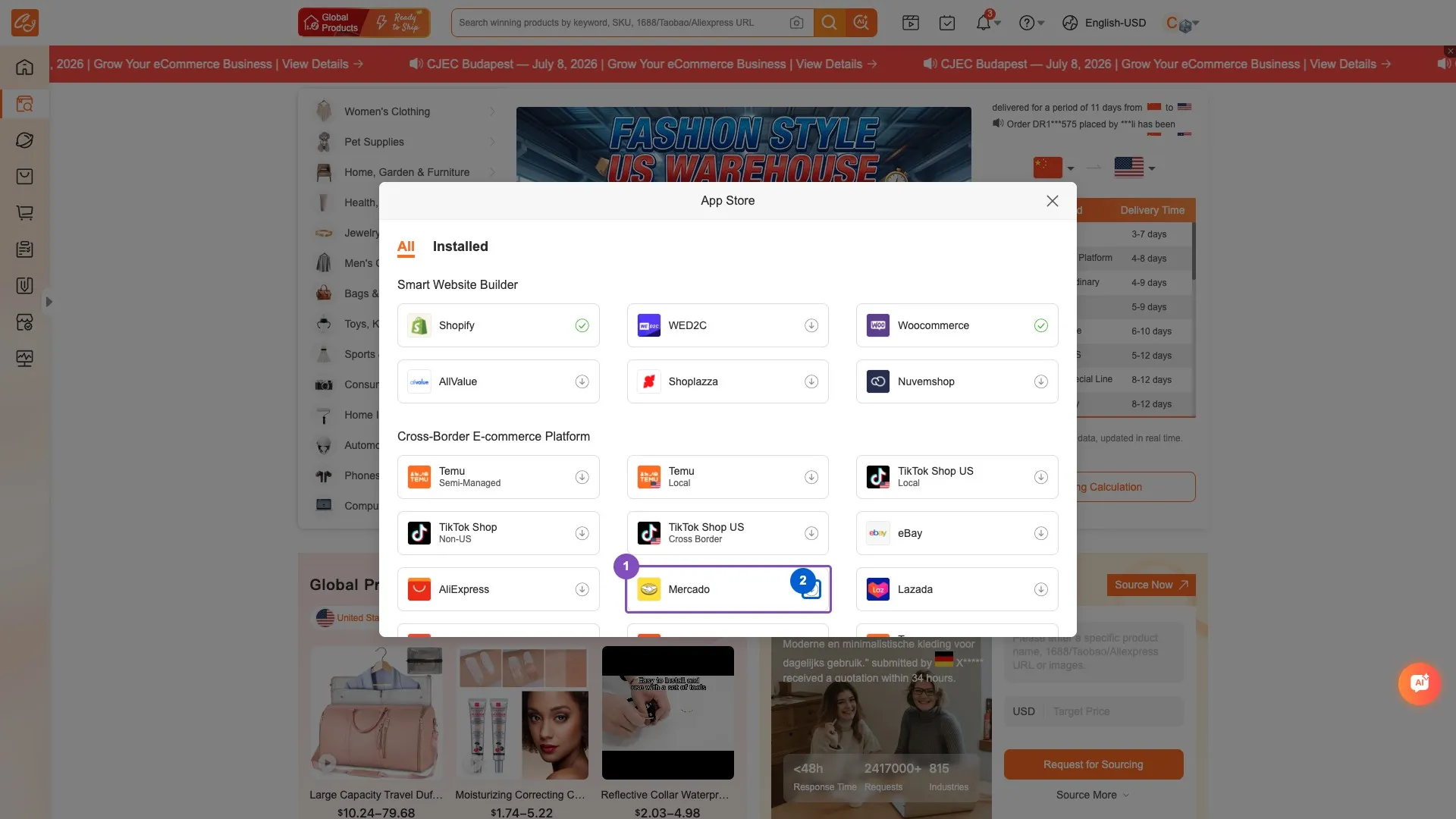
Tip: If Mercado is already installed (it shows a green check in the App Store and appears in your left sidebar under Apps), you can skip Steps 1–2 and go directly to Step 3 to connect your store.
Step 1
1Mercado app— Find Mercado under Cross-Border E-commerce Platform in the App Store
2Install icon— Click the install (download) icon to enable the Mercado platform
Step 2Key PointMercado App Installation

Click Install on the Mercado card. After installation, Mercado shows a green check (installed) in the App Store and appears in the left Apps menu.
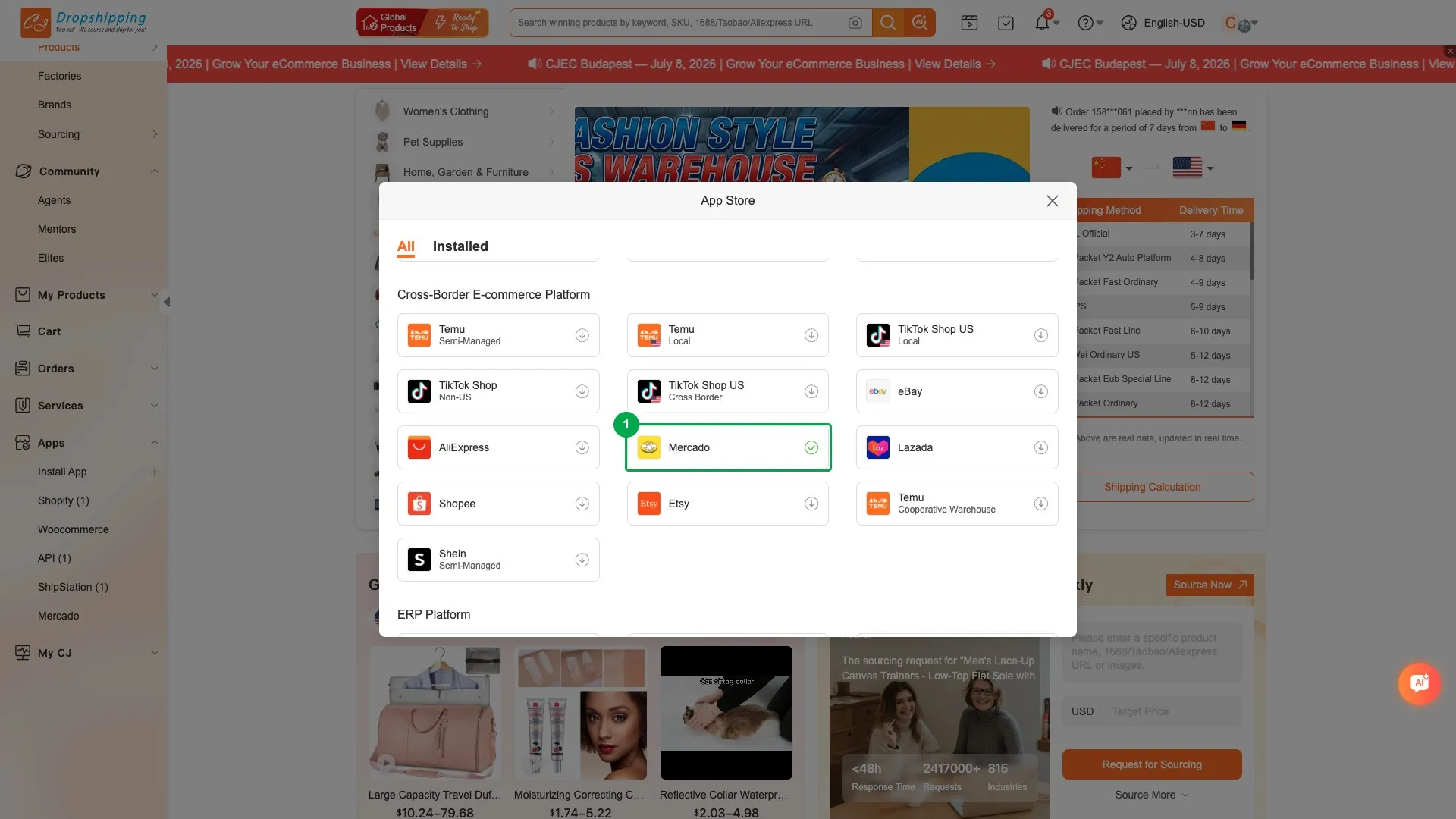
Step 2
1Mercado installed— Green check confirms the Mercado platform is installed/enabled
Step 3New Store Setup

In the left menu, open Apps → Mercado. If no store is connected yet, you'll see an empty page. Click Add Store to begin.
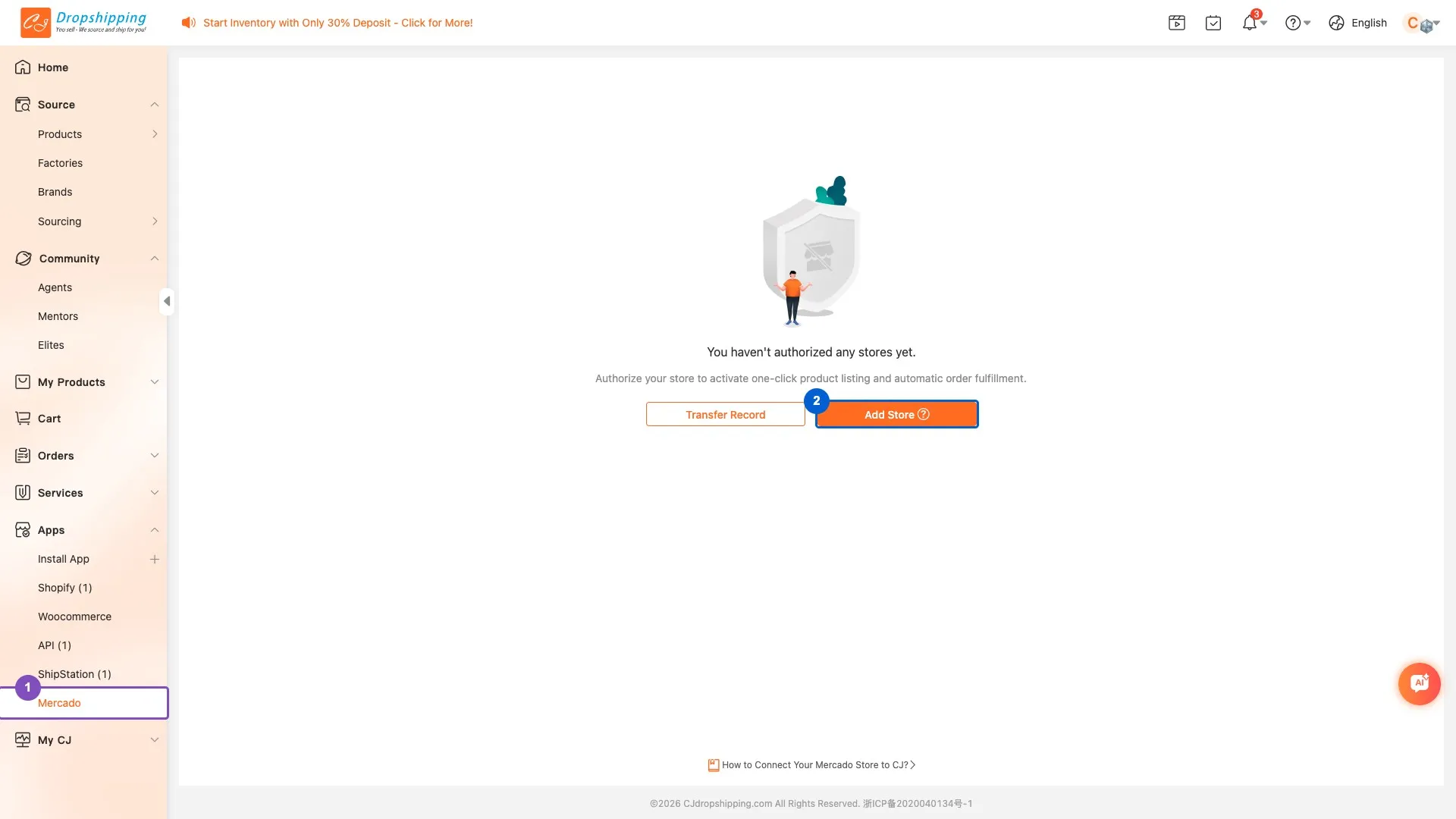
Step 3
1Mercado menu— The installed Mercado platform now appears under Apps
2Add Store— Click to start connecting your Mercadolibre store
Step 4Key PointAuthorization Notice

CJ shows an Authorization Notice: only Cross-Border Store accounts in self-delivery mode are supported, and Full warehouse-mode stores are automatically filtered out after authorization. Click Continue to Authorize.
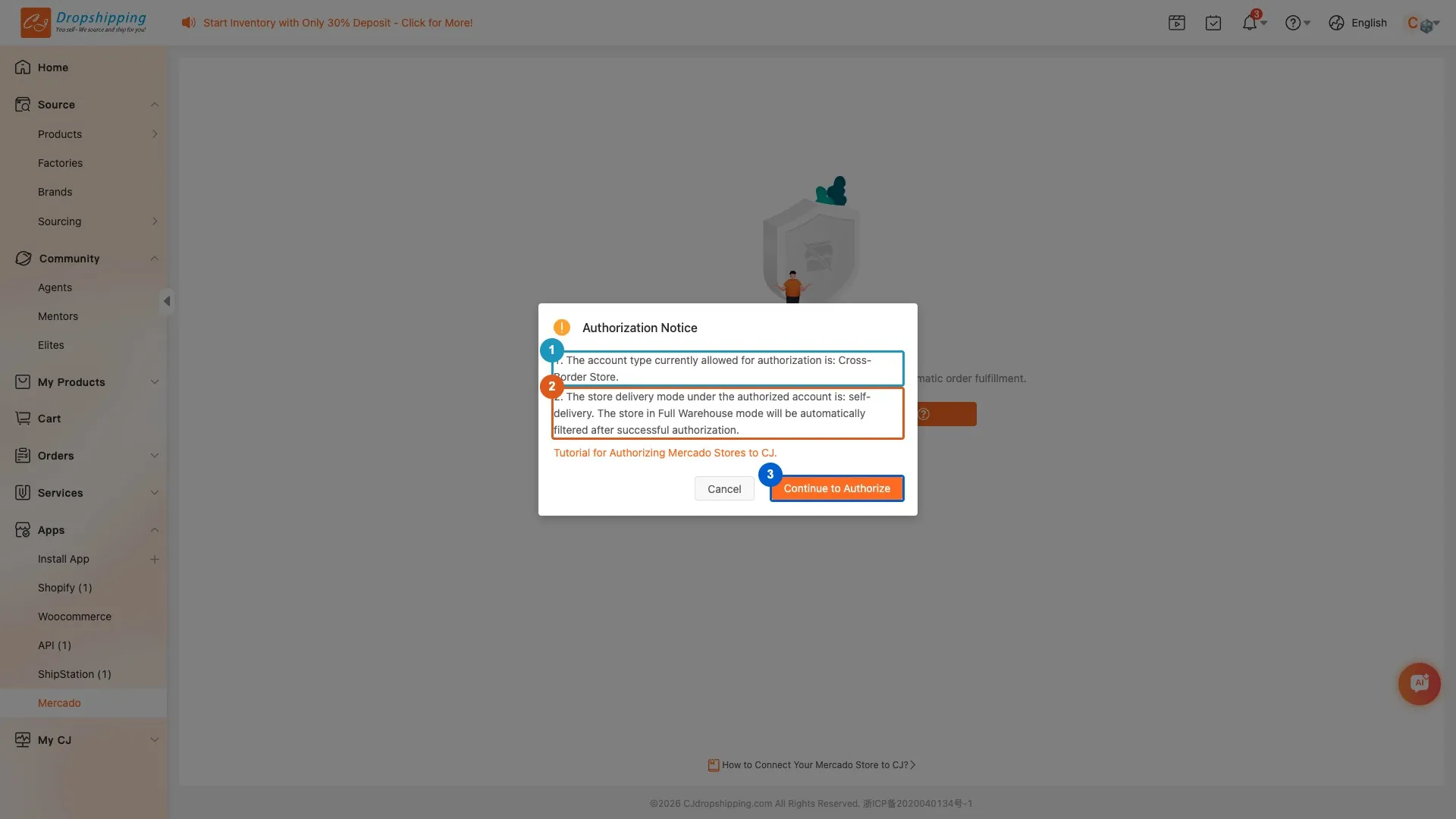
Step 4
1Allowed account type— Cross-Border Store accounts only
2Delivery mode / Full filtered— self-delivery only; Full warehouse stores are auto-filtered after authorization
3Continue to Authorize— Proceed to the Mercadolibre authorization flow
Step 5Key PointMercadolibre Account

You are redirected to Mercadolibre to sign in and authorize the connection. On the "Fill out your e-mail address to log in" page, enter the email address of your Mercadolibre seller account and click Continue, then enter your password to finish signing in. Be sure to log in with the account that owns the self-delivery cross-border store you want to connect.

Step 5
1Email field— Enter the email of your Mercadolibre seller account
2Continue— Click to proceed to the password step and sign in
Step 6Authorization Confirmation

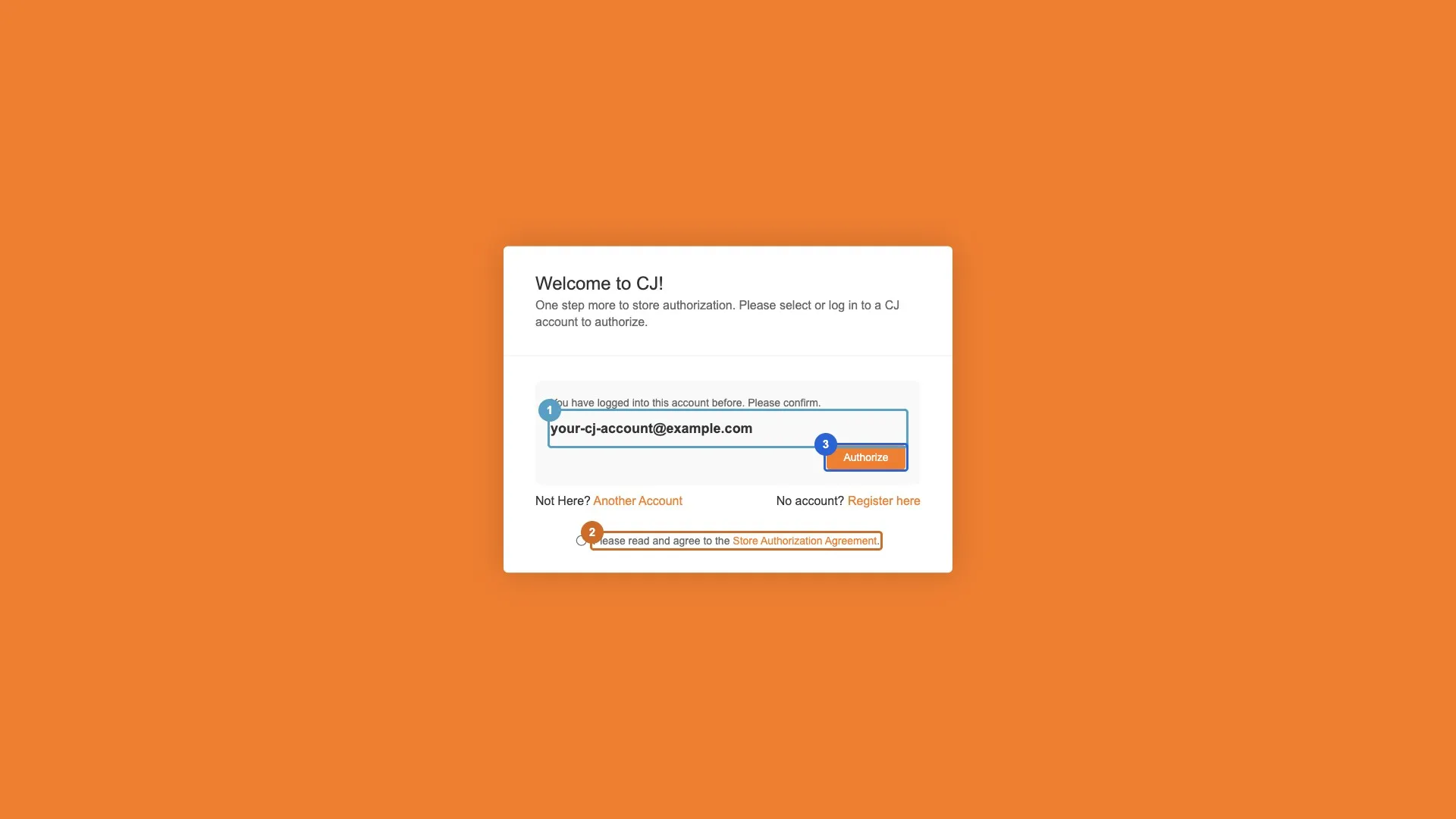
After Mercadolibre returns to CJ, a confirmation page appears: select/confirm the CJ account to authorize, check the Store Authorization Agreement, then click Authorize.
Step 6
1CJ account to authorize— Confirm the CJ account the store will be bound to
2Agree to the agreement— Read and check the Store Authorization Agreement first
3Authorize— Click Authorize to confirm and complete the binding
Step 7Key PointAuthorization Success

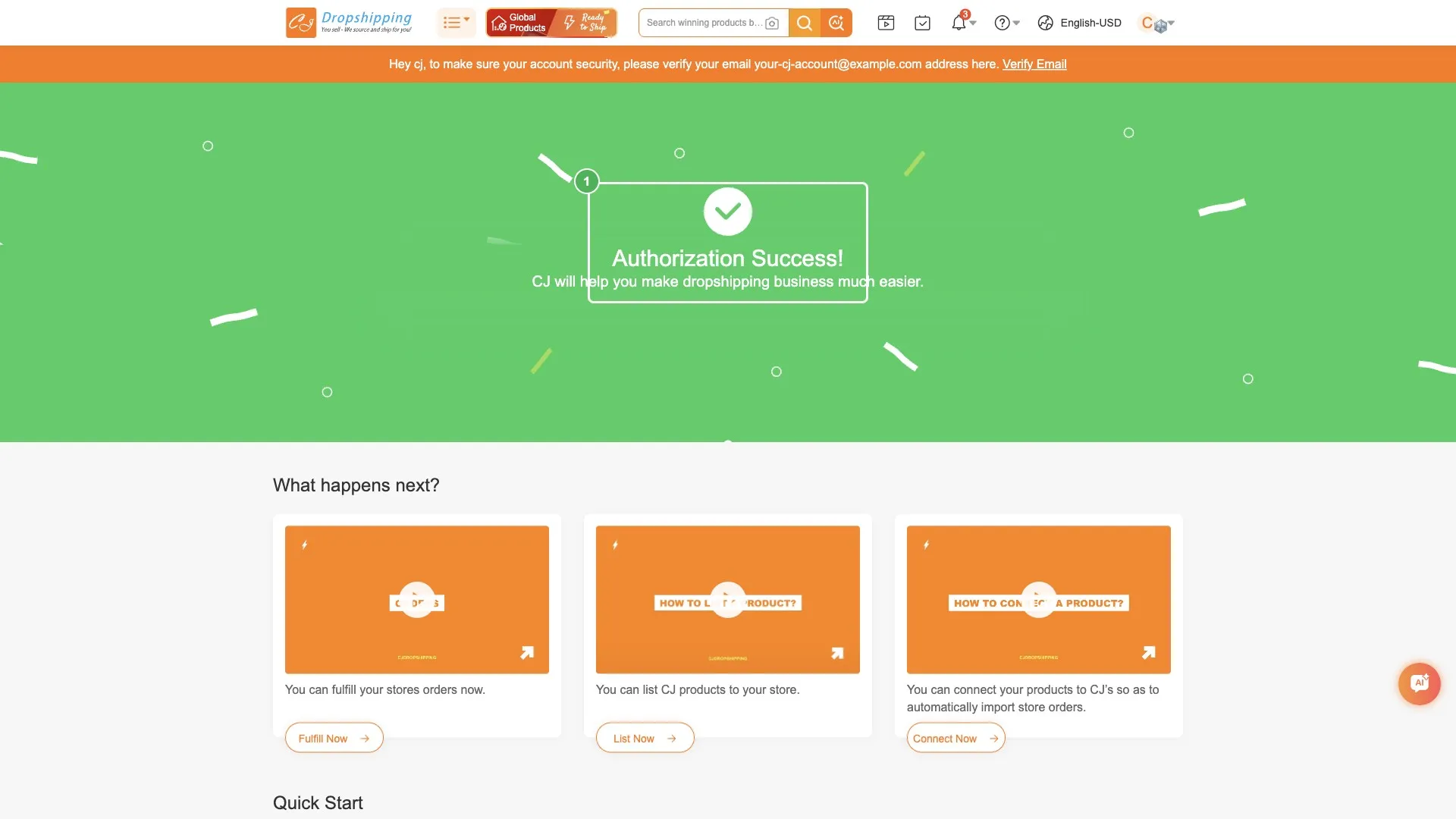
CJ shows an Authorization Success! page confirming the store is connected. From here you can fulfill orders, list products, and connect products.
Step 7
1Authorization Success— The store was authorized and connected to CJ successfully
Step 8Key PointStore Connection Verified

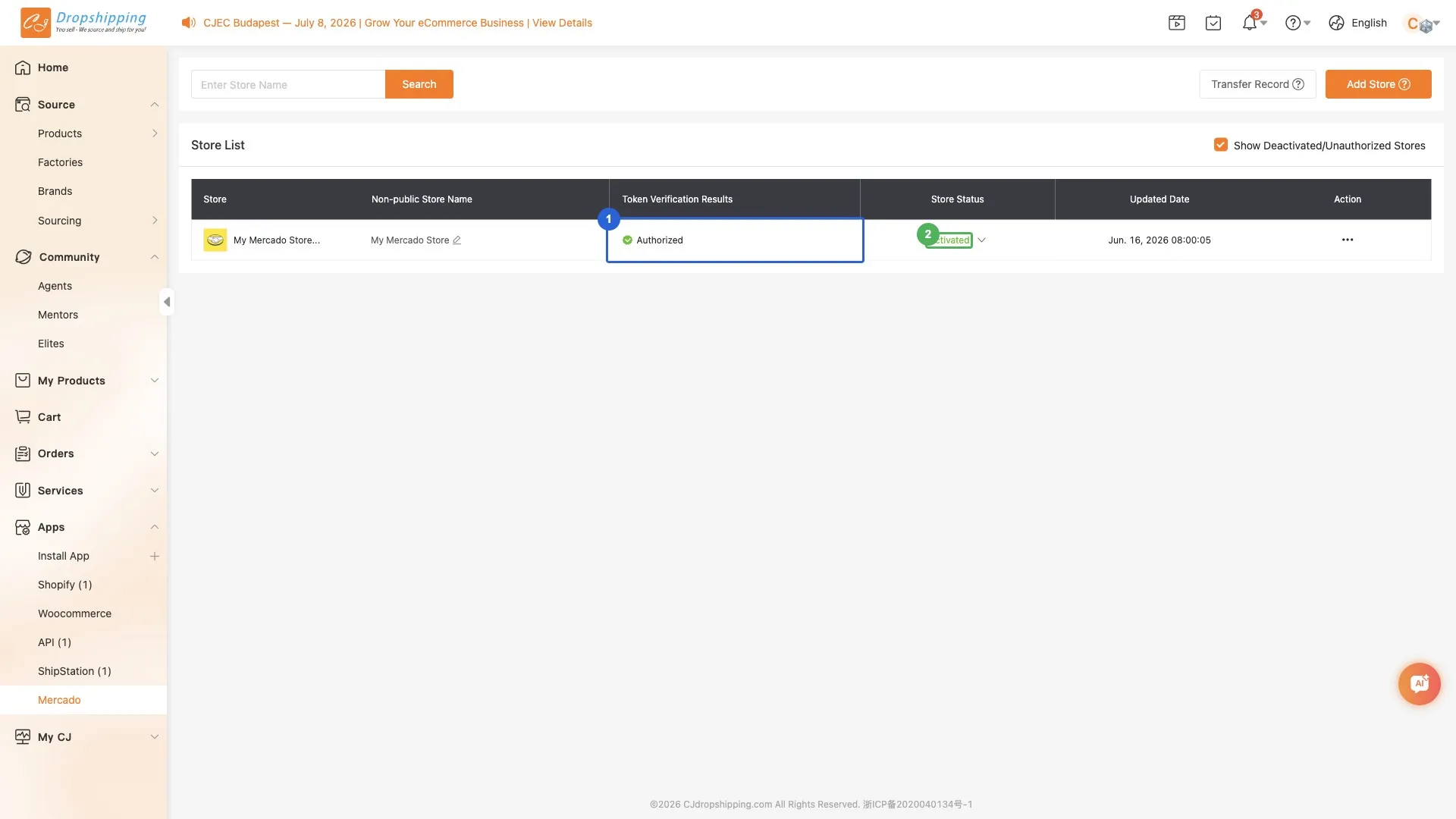
Back in Apps → Mercado, your store appears in the Store List with Token Verification: Authorized and Store Status: Activated. The connection is complete.
Step 8
1Token Verification: Authorized— CJ verified access to your Mercadolibre store
2Store Status: Activated— The store is active and ready to list products / sync orders

Related Questions

QI don't see Mercado under Apps — how do I enable it?
Go to Apps → Install App to open the App Store, find Mercado under *Cross-Border E-commerce Platform*, and click Install. Once installed, Mercado appears in the left Apps menu and you can add your store.
QWhich Mercadolibre store types can be authorized to CJ?
Only Cross-Border Store accounts in self-delivery mode are supported. Stores in Full (Mercado Envíos Full) warehouse mode are automatically filtered out after authorization. CJ shows this in the Authorization Notice dialog before you proceed.
QWhat is 'Full mode' and why might my store be filtered out?
Full is Mercadolibre's fulfillment mode (Mercado Envíos Full) where Mercadolibre stores and ships your stock. CJ connects only self-delivery cross-border stores, so Full-mode stores are filtered automatically after authorization. Use a self-delivery store, or contact CJ support.
QI have multiple stores under one account — why are some not displayed in CJ after successful authorization?
Check whether those stores are in Full mode. Full-mode stores are not currently supported and are filtered out during authorization, so only your self-delivery cross-border stores will appear in CJ.
QHow do I check my Mercadolibre account/store, and does my region (MX/AR/BR) matter?
When redirected to Mercadolibre, log in to your seller account and check Summary — it shows your Country (e.g. Mexico). Mercadolibre runs multiple Latin American sites (MLM Mexico, MLA Argentina, MLB Brazil, etc.); authorize with the account that owns the store on its site. Confirm it is a self-delivery cross-border store before connecting.
QDuring authorization, Mercadolibre shows "Do you need help with your account?" — how do I resolve it?
This usually means you are signing in with a Mercadolibre sub-account. Sign in with the Mercadolibre main (owner) account instead to complete the authorization.
QAuthorization keeps prompting for my username and email and I can't log in — what's wrong?
Check the address bar during login. If it shows global-selling.mercadolibre.com, your account is a local store (registered with a local company account), which is not supported for authorization. Authorize with a cross-border store account instead.
QHow do I confirm the authorization worked, and what can I do next?
After clicking Authorize you'll see an Authorization Success! page, then your store appears in Apps → Mercado with Token Verification: Authorized and Store Status: Activated. You can then list CJ products to Mercadolibre and sync orders. If the store does not appear, re-check the store type (Full-mode stores are filtered).